Offline No account, no server

Quick notes that never leave your device.

Falcon Notes is a calm place for the things you jot down every day: a timeline of notes, todo lists, daily notes and a habit tracker. It works without an account and without the internet. Everything you write is kept on your device, always encrypted, and leaves it only when you export a backup.

  • No account and no sign-in
  • No internet permission
  • No ads and no tracking
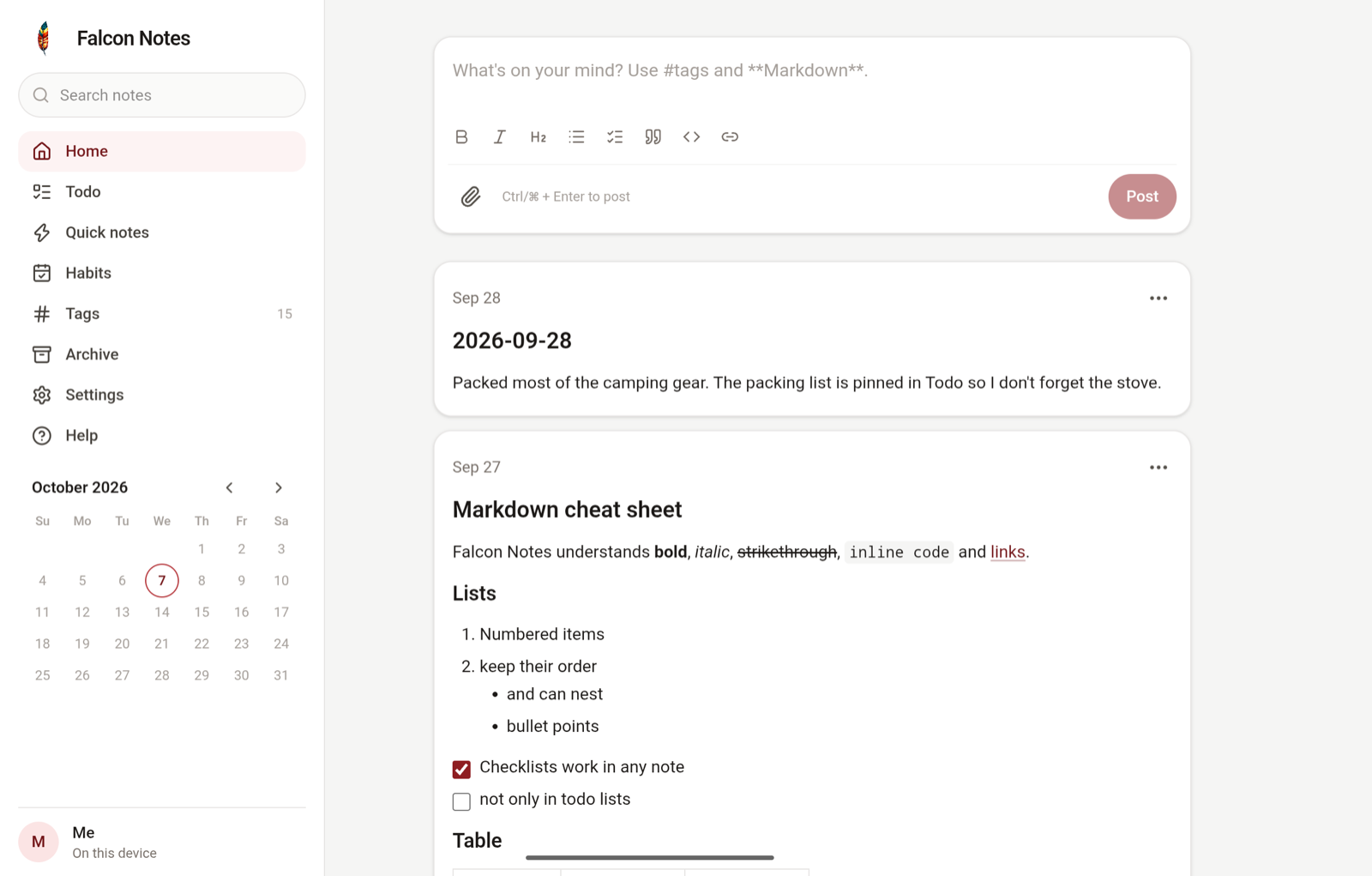
The Falcon Notes home page on a tablet: a side menu with a calendar, and a box for writing a note above a timeline of notes.

Everything a notebook needs, and nothing it doesn't

You turn the extras on or off in Settings. Turning something off hides it and deletes nothing.

Write

  • Timeline. Newest notes first, pinned notes on top, and a box for the next one always ready.
  • Markdown and tags. Task lists, tables and code, a formatting toolbar, and nested tags such as #work/meetings.
  • Attachments. Photos, video, audio and any other file, chosen with your device's file picker. Photos open full screen, and video and audio play in the note. Large photos can be shrunk as they are added.
  • Search. Finds any word in your notes and the names of their files.
  • Export to PDF. Optionally, save a single note from its menu as a PDF on your device, with its pictures, to print or to send.

Organise

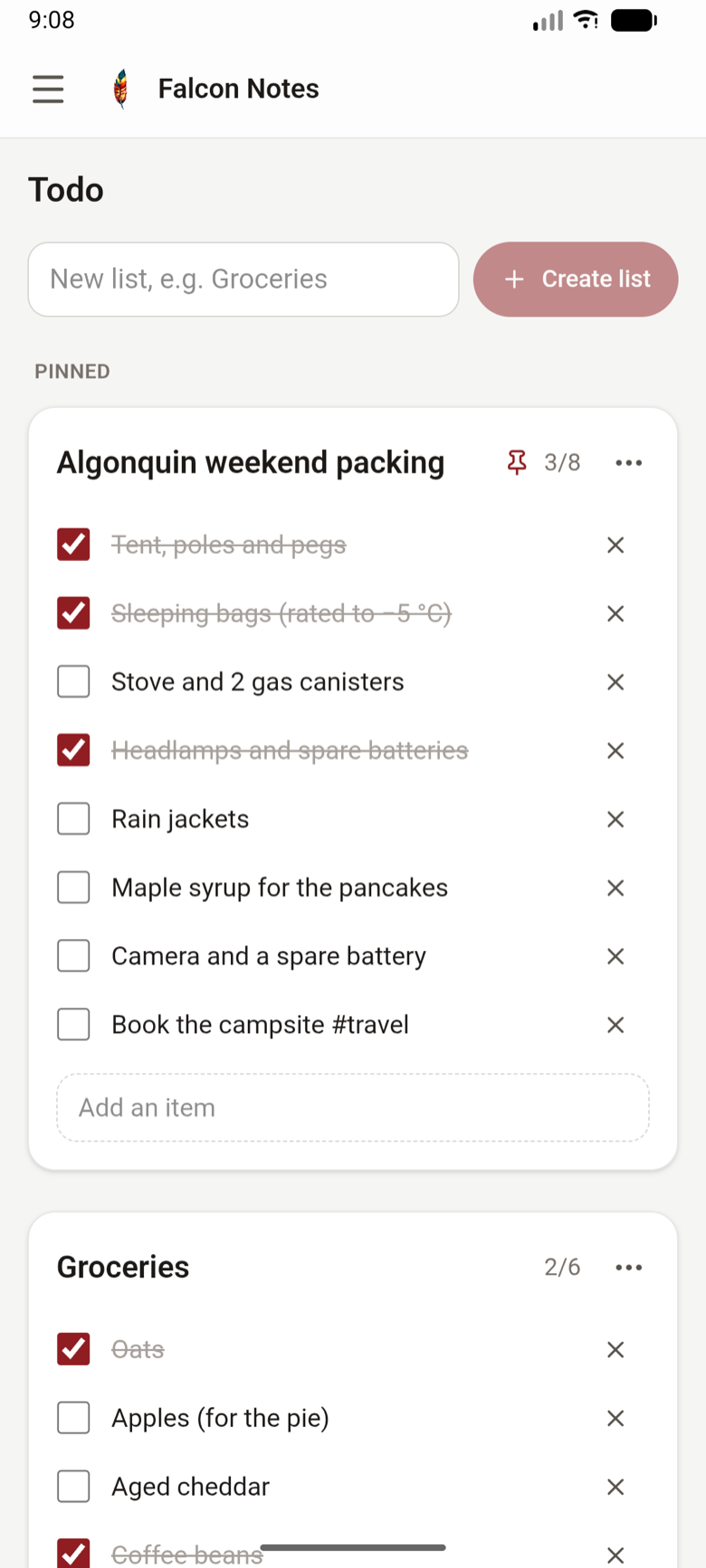
  • Todo lists. Checklists in their own tab, to tick, rename, pin and archive, or to edit all at once as Markdown.
  • Quick notes. A scratchpad kept out of your timeline, until a note is worth keeping.
  • Daily notes. Today's note waits at the top of Home, titled with the date.
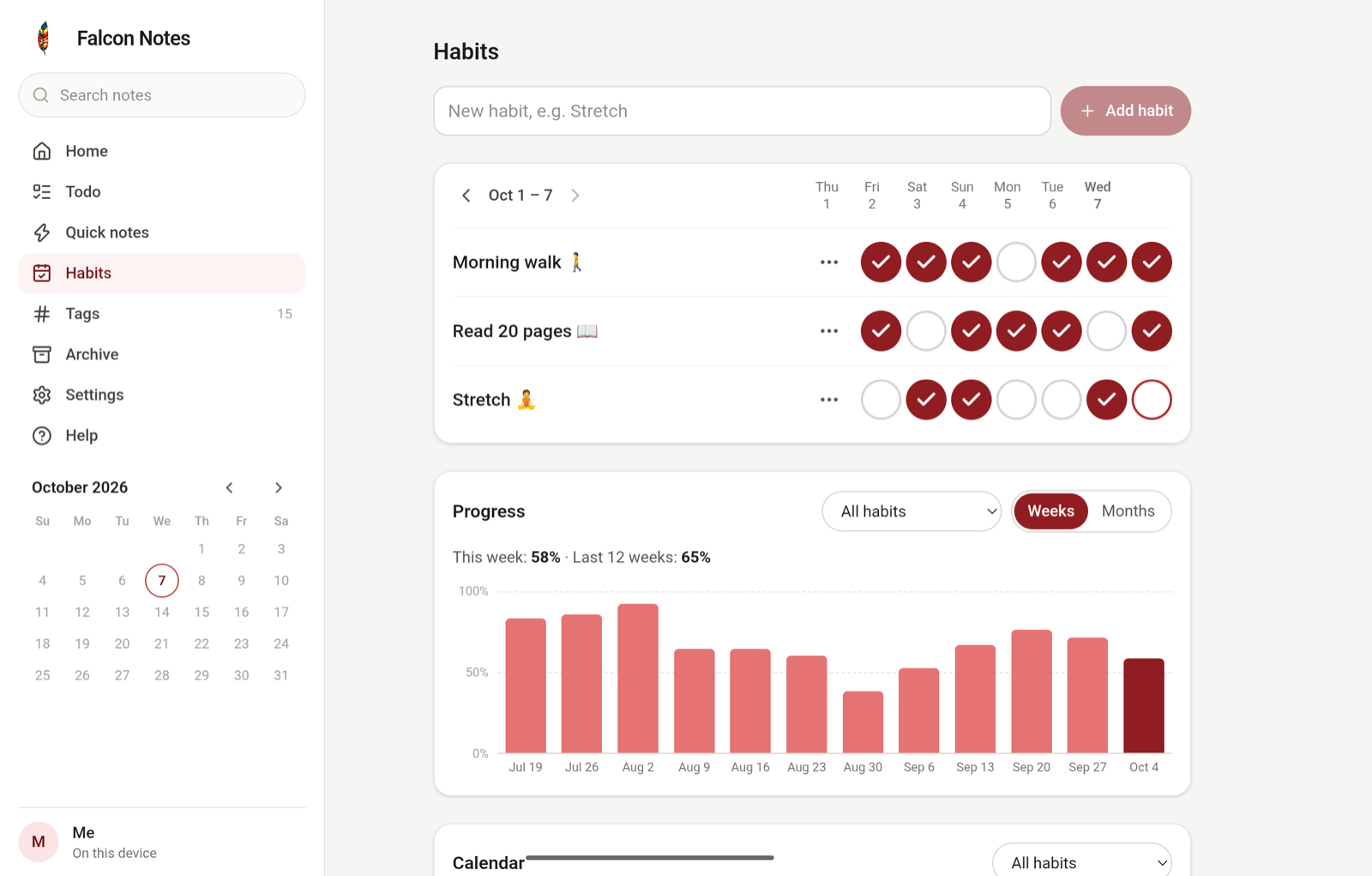
  • Habit tracker. Tick off the days you keep each habit, and follow the weeks or months in a chart, with streaks, or a whole month in a calendar.
  • Calendar, tags and labels. The days you wrote on, every tag with its count (suggested as you type one), and coloured labels you put on notes by hand.

Keep

  • Encrypted, always. Your notes, labels and files are stored encrypted, with a key your device keeps in its secure storage. How it protects you
  • Backups you can read. Everything as a ZIP of Markdown, plain text or JSON, with your files and each note's labels, saved wherever you choose and restored on any device. Or let the app save one by itself, to a folder you choose, every day, week or month.
  • A trash for second thoughts. Deleted notes wait 30 days, and Undo brings one straight back.
  • App lock. An optional PIN keeps people who pick up your device out of your notes.
  • Locked notes. Optionally, lock a single note from its menu: it shows a lock and nothing of what is in it, and stays out of searches. Your PIN opens it, and it locks again by itself when you leave the page or the app.
  • Your look. Light, dark or your device's setting, seven accent colours, festive backgrounds such as Halloween, Diwali, Vesak and Eid, and the side menu in your own order and text size.
  • Help built in. A user guide in the app explains every feature.

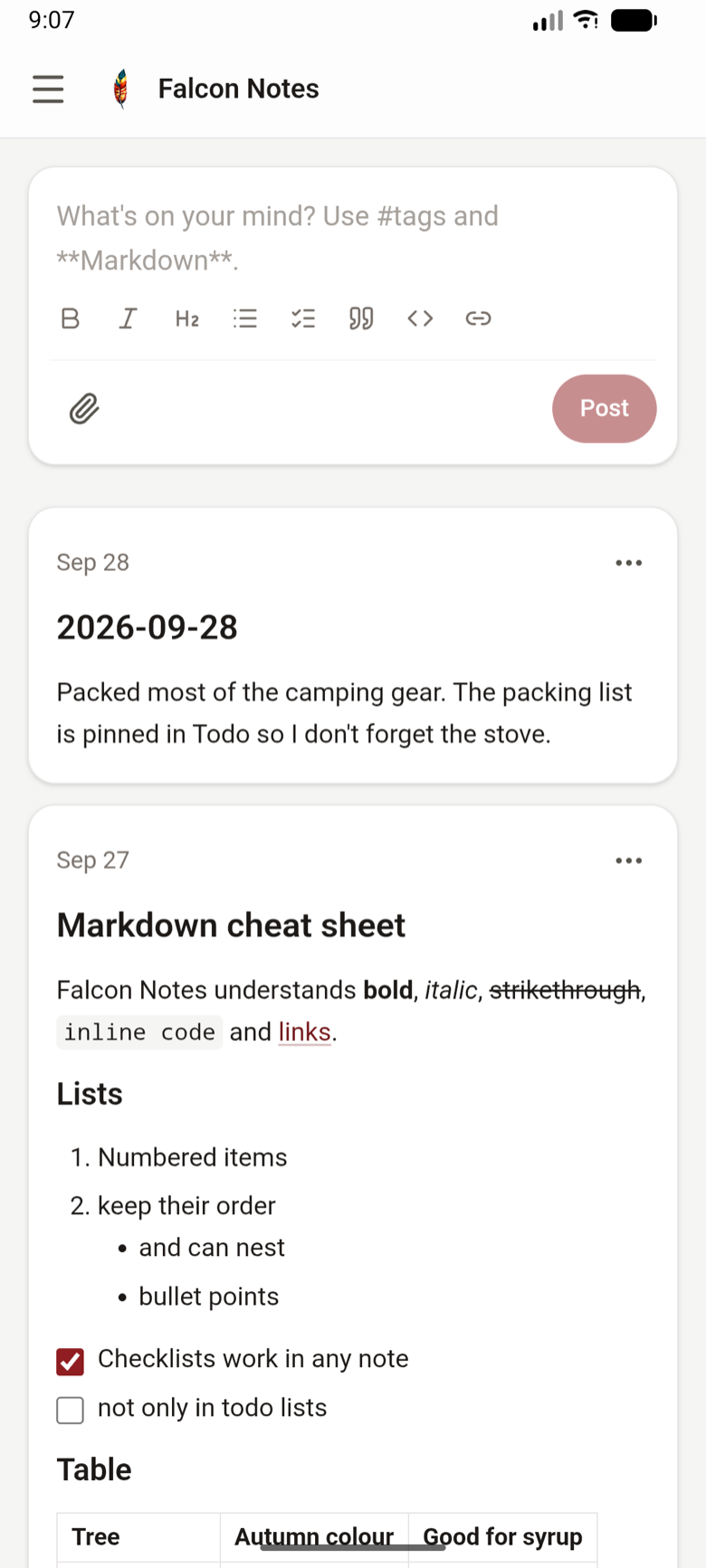
At home on a phone or a tablet

Private by design, honest about the limits

Falcon Notes has no server to trust. It cannot send your notes anywhere, and what it stores is unreadable without your device.

Offline Always

The Android app has no internet permission, so the system itself keeps it off the network. The only permission it asks for lets the app lock use your device's fingerprint or face check. There are no accounts, no sync, no analytics and no ads.

Encrypted Always

The database is encrypted with AEGIS-256 and every attached file with AES-256-GCM. The key is random, made on your device, and kept in the Android Keystore, apart from the files.

There is no setting to turn it off. How it works

App lock Optional

A PIN that Falcon Notes asks for when it opens, and after it has been in the background for as long as you choose. While the lock is on, screenshots are blocked and the app's preview in the recent-apps screen is blank. The same PIN locks single notes, once you turn that on: a locked note shows nothing of what is in it until you unlock it, and locks again by itself.

  • Android's cloud backup is switched off for the app, so your notes are not copied to a backup you did not make yourself.
  • Opening or sharing a file hands a decrypted copy to the app you pick. Falcon Notes deletes its temporary copy the next time it starts.
  • The privacy policy says the same in full: the app collects nothing.

Three things are up to you. Exports are not encrypted, so keep a backup ZIP somewhere safe. Uninstalling the app deletes your notes together with their key, so export first. And the app lock is a privacy screen, not a second key: a forgotten PIN cannot be reset, only cleared by erasing the app's data and restoring a backup. A locked note is hidden in the app, not in your backups: exports hold it like any other note. The threat model explains what the encryption protects against and what it does not.

Works with Maple Notes

Falcon Notes is the offline companion of Maple Notes, a self-hosted web app, and is based on its version 1.16.0. Both use the same backup format: a backup made in one restores in the other, with dates, pins, archive state, labels and files. Falcon Notes does not sync, so moving between devices is done by export and restore. Settings are not part of the backups yet.

To have your notes on every device, Maple Notes runs on your own server, in one Docker container, with accounts and optional end-to-end encryption.

Get it

Version 1.0.0 is for Android 8.0 and later, on phones and tablets. Windows and macOS versions are planned.

Install it from Google Play

For Android 8.0 and later, on phones and tablets. It has no ads and asks for no internet access.

Build it from source

You need the .NET 10 SDK with the MAUI Android workload, and the Android SDK.

git clone https://github.com/supunsarachitha/FalconNotes
cd FalconNotes
dotnet workload install maui-android
# Run on a connected phone or a running emulator
dotnet build src/FalconNotes.App -t:Run -f net10.0-android

Moving in from Maple Notes

Export your notes in the web app, under Settings → Backup & data, and copy the ZIP to your device. On Falcon Notes' first screen choose Restore from a backup…, or later use Settings → Backup & data → Restore. Restoring the same backup twice changes nothing.

Your notes live only on your device. Export a backup from time to time, in Settings → Backup & data, and keep it somewhere safe. Or turn on Back up automatically there.

Source-available

Falcon Notes is released under the PolyForm Noncommercial License 1.0.0. You may use, change and share it for any noncommercial purpose; commercial use needs a separate licence from the copyright holder. Third-party components keep their own licences, listed in the notices.